
Gaming Technology
10 Effective Ways To Boost GPU Performance Without Buying A New Card
Share
TL;DR
-
Update graphics drivers and choose settings that balance image quality with playable frame rates.
-
Try compatible upscaling before frame generation, which increases displayed frames without equivalent gains in responsiveness.
-
Confirm games use your dedicated GPU, then test Windows gaming features and close unnecessary background apps.
-
Check power settings and cooling, especially on laptops, where power and temperature limits can restrict performance.
-
Enable Resizable BAR where supported and consider conservative tuning only after the basics work properly.
-
Compare repeatable tests after each change. Results depend on your hardware, game, and existing bottlenecks.
Introduction
If you watched Junkyard Wars when you were a kid, the odds that you have a drawer full of random tools that may never find any purpose are quite high. If you haven’t ever watched it, let me explain.
Junkyard Wars grew out of the British show Scrapheap Challenge, which began airing in 1998. The idea was simple: two rival teams must build machines using only scrap parts found in a junkyard that was surprisingly and unusually well-stocked.
The show taught a whole generation of children to make the best of what they had, without having to go out and buy shiny, expensive, new toys. Of course, that doesn’t always apply, especially when technology keeps growing and improving.
In today’s AI-focused world, GPUs are in greater demand, pushing manufacturers to make more powerful models faster. However, in the words of Dominic Toretto: “It doesn't matter what's under the hood, the only thing that matters is who's behind the wheel.”
So, before you go thinking you need the latest and most powerful GPUs to take on your rivals, you might want to consider boosting the performance of your existing setup.
So, how can you do that? Here are 10 effective ways to do so.
10 Effective Ways To Boost GPU Performance Without Buying A New Card
If you’re wondering how to boost GPU performance, start with the game you actually play.
Run its built-in benchmark, or repeat the same short gameplay route, and record your frame rate and temperature. Change one thing at a time so you can tell what helped.
These methods focus on individual gaming PCs and laptops. Some reduce the GPU’s workload; others help the system deliver performance it was already capable of. That flexibility is one advantage of a gaming PC, provided you take the time to configure it.
1. Update Your GPU Drivers
Before blaming the hardware, check the software telling it what to do.
Graphics drivers connect your games to your GPU, and updates can include game-specific optimizations, compatibility fixes, and stability improvements.
Download a supported driver from NVIDIA, AMD, Intel, or your laptop manufacturer. NVIDIA’s app provides Game Ready drivers for gaming, while AMD and Intel offer their own update tools. For a laptop with customized graphics features, check the manufacturer’s guidance before switching drivers.
Read the release notes, install the appropriate version, and restart before testing. A newer driver may help a recently released game without changing performance in an older title. If an update introduces crashes or a clear slowdown, return to a previously stable version.
Avoid random driver websites and applications promising miraculous boosts. The goal is a reliable driver suited to your card, not the highest version number at any cost. Once that foundation is settled, look at what your game asks the GPU to render.
2. Lower The Most Demanding Graphics Settings
Which settings should you change to maximize GPU performance?
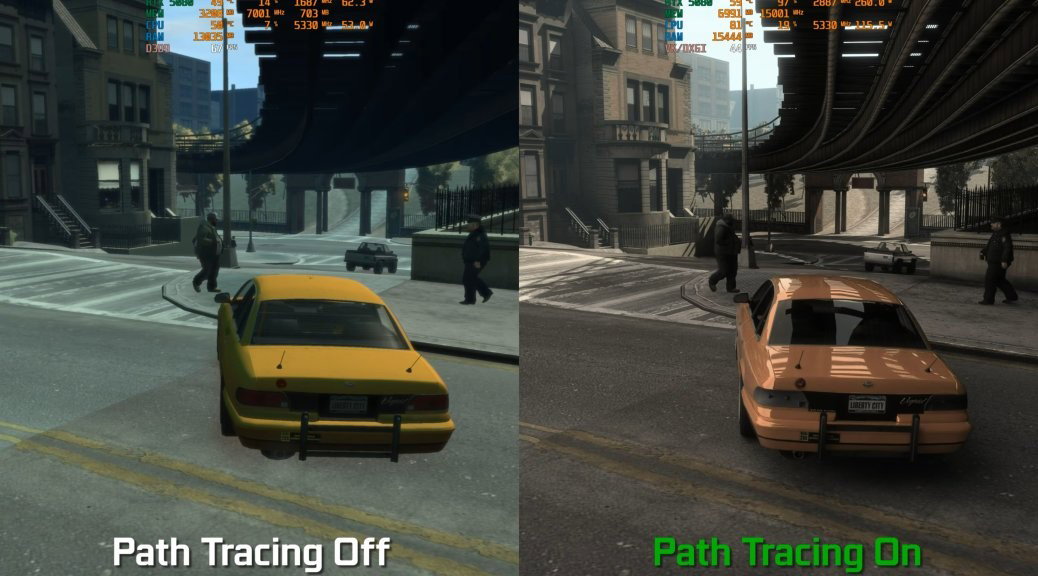
Start with ray tracing, demanding reflections, volumetric effects, and shadows, then compare the visual difference against the frame-rate gain. Their impact varies by game, so test rather than assuming every setting costs the same.
Move from Ultra to High before dropping everything to Low. You may preserve much of the scene’s appearance while reducing rendering work. Review anti-aliasing, too, especially expensive supersampling options that render extra pixels to smooth edges.
Lower texture quality if the game exceeds your available video memory or develops texture-related stutters. It is not always the first setting to reduce when memory use is comfortably within the card’s capacity.
If the GPU remains overloaded, lower the rendering resolution or resolution scale. This can increase GPU performance as experienced in the game by reducing the work per frame. However, it trades detail for speed, which makes upscaling worth checking next.
3. Use Supported Upscaling And Frame Generation
Upscaling lets a game render at a lower internal resolution and reconstruct an image for your display.
NVIDIA DLSS, AMD FSR, and Intel XeSS offer different implementations, with availability depending on the game, GPU, and feature version.
Try Quality mode first, then compare Balanced or Performance if you still need more speed. Check moving objects, fine details, and text rather than judging a paused screenshot. NVIDIA’s use of deep learning is one example of how AI can help improve gaming on existing hardware.
Frame generation adds intermediate frames between rendered ones. It can make motion look smoother, but a higher displayed FPS does not mean the game responds like it is rendering every frame normally. Compare mouse response and watch for visual artifacts.
Use the game’s supported latency-reduction option where available. These features illustrate AI’s role in graphics, but they still need a suitable hardware and software combination. First, make sure that combination is using the right GPU.
4. Make Sure Games Use The Right GPU
Some PCs, particularly gaming laptops, have both integrated graphics and a dedicated GPU.
If a demanding game runs on the lower-power option, adjusting its graphics settings may leave the real problem untouched.
In Windows 11, open Settings > System > Display > Graphics. Select the game, or add its executable if it is missing, and choose High performance under its graphics preference. Confirm that the listed GPU is the dedicated card you intend to use, then save and restart the game.
Choose the actual game executable rather than only its launcher. Check GPU activity during gameplay to confirm your preference took effect. Windows interface labels can differ between versions, so look for the per-app GPU preference.
On a desktop using a dedicated card, also check that the monitor is connected to that card’s display output. This step corrects GPU selection; it does not combine two GPUs or increase their specifications. With the right hardware handling the game, Windows settings become the next useful check.
5. Optimize Windows 11 Gaming Settings
To increase GPU performance on Windows 11, begin with features designed for gaming rather than a long list of registry edits.
Open Settings > Gaming > Game Mode and enable it, then compare your usual game before and after.
Next, visit Settings > System > Display > Graphics and look for Optimizations for windowed games. Microsoft says this improves presentation latency for compatible DirectX 10 and DirectX 11 games running in windowed or borderless modes. It is not a universal FPS multiplier for every game.
Hardware-accelerated GPU scheduling is another setting to test if your GPU and driver support it. It moves much of the scheduling work from the CPU to dedicated GPU hardware. Restart after changing it and retain whichever configuration behaves better in your games.
Keep notes so you can reverse a change that causes stuttering. These options help manage how Windows handles gaming; their benefit depends on your system. Background applications can still compete with that work, even when the gaming settings are correct.
6. Close Unnecessary Background Apps And Recording Tools
Your game may be competing with browser videos, video editors, recording software, or local AI workloads. Closing applications you are not using can free system resources and, where those applications use the GPU, reduce competing graphics or compute activity.
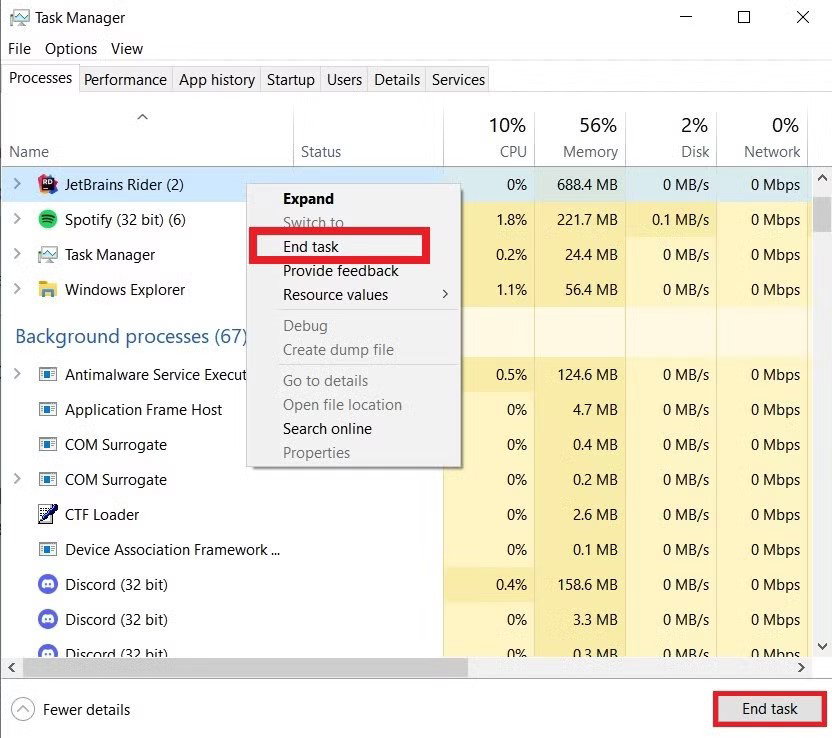
Press Ctrl + Shift + Esc to open Task Manager.
Review CPU, memory, and GPU activity, then close identifiable user applications that are consuming resources unnecessarily. Do not end unfamiliar Windows processes simply because their names look complicated.
Check background recording and instant-replay features in Windows and your graphics software. If you are not saving clips, test with those features disabled. Keep any recording, voice chat, or accessibility tool you actually need, and compare results with it running.
This works best when something was competing with the game. Closing an idle application will not automatically produce a meaningful FPS gain. Once you have reduced unnecessary activity, check whether the system is limiting performance to save power.
7. Adjust Power Settings For Gaming
A gaming laptop running on battery may restrict performance to control power use.
Connect the appropriate manufacturer-recommended charger before testing and avoid comparing an unplugged run with a plugged-in result as if only the graphics settings changed.
In Windows 11, go to Settings > System > Power & battery and select Best performance for plugged-in use, if available. Some desktops label this section Power. A manufacturer’s utility may also provide a gaming or performance profile that changes power allocation and fan behavior.
Compare the result with your normal profile. Higher-performance modes can increase heat, fan noise, and electricity use, while producing little improvement when another bottleneck already limits the game.
Prefer a gaming-specific profile where supported rather than forcing maximum performance for every application throughout the day. Windows power mode is also different from directly raising a GPU’s power limit. Start with the supported system controls, then check whether the cooling can sustain the resulting workload.
8. Improve Cooling And Clear Dust Buildup
If performance starts strong and fades after several minutes, check temperatures and clock speeds. A GPU can reduce its operating speed when it reaches thermal limits, so improving cooling may recover performance lost to overheating.
Shut down and unplug the computer before cleaning. Follow the manufacturer’s instructions to remove dust from accessible vents, filters, and fans. Clear space around desktop ventilation, and use a laptop on a firm surface that leaves its vents unobstructed.
If supported, test a manufacturer-provided fan profile and compare sustained gameplay. A louder profile may help temperatures, but the useful result is stable performance over time. Temperature limits differ between cards, so check guidance for your specific model rather than applying one universal threshold.
You do not need to dismantle the GPU or replace thermal paste as a routine first step. If it is already cooling properly, cleaning will not magically add FPS. Once thermal restrictions are ruled out, check whether your system supports another useful feature: Resizable BAR.
9. Test Resizable BAR If Your System Supports It
Resizable BAR is a PCI Express feature that changes how the CPU can access graphics memory.
On a compatible system, enabling it can improve performance, although the result depends on the GPU and application.
Check your GPU, motherboard, processor, and firmware support before changing anything. Intel specifically recommends enabling Resizable BAR for optimal Arc graphics performance. Depending on the manufacturer, the option may appear as Re-Size BAR or Smart Access Memory.
Follow your system manufacturer’s instructions. Setup can involve Above 4G Decoding, UEFI boot, and compatible firmware. Do not blindly disable legacy boot settings on an existing Windows installation: first confirm that its boot configuration supports the required mode.
Verify the feature’s status with the relevant graphics utility, then repeat your game test. Avoid firmware updates or unsupported workarounds purely because a generic checklist tells you to try them. If Resizable BAR is already enabled, move on. Your final option is tuning the card itself, after saving a stable baseline.
10. Try Conservative GPU Tuning And Test Stability
If you are still exploring how to increase GPU performance, supported tuning tools can adjust clock speeds, voltage, and fan behavior. Treat this as an optional advanced step after drivers, settings, power, and cooling are sorted.
Overclocking raises operating speeds and may improve performance, while undervolting aims to reduce voltage for a given operating point. A stable undervolt may help a card constrained by heat or power sustain its clocks, but it is not a guaranteed FPS increase.
Use your GPU vendor’s supported utility or an established tool compatible with your card. AMD Software, for example, offers automatic tuning options on supported GPUs. Save the default profile, change one control at a time, and test several games as well as longer sessions.
Revert if you see crashes, visual corruption, or worse performance. Check the manufacturer’s terms before operating outside stock specifications. Knowing when to stop is part of learning to boost GPU performance without buying a new card. Keep the changes your tests actually justify.
Topics For More Insights
The Final Tune-Up
Your current graphics card may have more to offer once you update its software, reduce unnecessary rendering work, and address power or cooling limits. Start with simple changes, test them individually, and leave advanced tuning until last. Like the teams on Junkyard Wars, make the most of the equipment already in front of you. A smoother game is a better result than an impressive setting that keeps crashing.
Frequently Asked Questions
How Do You Know Whether Your GPU Is The Bottleneck?
Compare the same scene at your normal resolution and a substantially lower one, while monitoring GPU activity. If frame rates rise noticeably, graphics workload is likely a major limit. If they barely change, investigate CPU limits, frame-rate caps, memory pressure, or the game itself. Total CPU usage can hide a busy individual core. No single utilization percentage proves the diagnosis, so combine monitoring with repeatable tests rather than deciding from one screenshot of Task Manager alone.
Will These Gaming Tips Also Speed Up AI Training?
Some basics overlap, including suitable drivers, adequate cooling, and avoiding competing GPU workloads. However, gaming settings such as shadow quality and frame generation do not accelerate model training. AI training needs workload-specific techniques, such as efficient data loading and suitable mixed precision, along with framework and hardware compatibility checks. These ten methods are intended for gaming. Developers should measure training throughput and memory use separately instead of treating a higher game FPS as evidence of faster training.
Can Cloud Gaming Help If Your Existing GPU Is Still Too Slow?
Cloud gaming can let you play supported games rendered on remote hardware, so the local GPU does not handle the full rendering workload. It does not make your card faster. Results depend on your internet connection, service availability, game catalog, and tolerance for streaming latency or compression. Before subscribing, try the service on your actual network and device. It can be an alternative to upgrading, but it may introduce recurring costs and restrictions on available games.
Wed, Oct 14, 2026

Enjoyed what you've read so far? Great news - there's more to explore!
Stay up to date with the latest news, a vast collection of tech articles including introductory guides, product reviews, trends and more, thought-provoking interviews, hottest AI blogs and entertaining tech memes.
Plus, get access to branded insights such as informative white papers, intriguing case studies, in-depth reports, enlightening videos and exciting events and webinars from industry-leading global brands.
Dive into TechDogs' treasure trove today and Know Your World of technology!
Disclaimer - Reference to any specific product, software or entity does not constitute an endorsement or recommendation by TechDogs nor should any data or content published be relied upon. The views expressed by TechDogs' members and guests are their own and their appearance on our site does not imply an endorsement of them or any entity they represent. Views and opinions expressed by TechDogs' Authors are those of the Authors and do not necessarily reflect the view of TechDogs or any of its officials. While we aim to provide valuable and helpful information, some content on TechDogs' site may not have been thoroughly reviewed for every detail or aspect. We encourage users to verify any information independently where necessary.
Loading comments...