
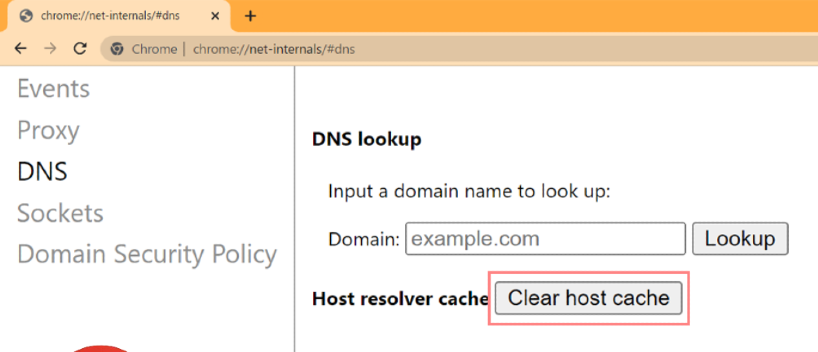
Isn't it frustrating to encounter an error when you can't load a website on your Chrome browser? The error might occur due to the accumulated DNS on Chrome that separates you from other browsers and Windows DNS.
The Net Internals on Chrome is a Net Log visualisation tool that allows you to review real-time and old usage logs. If you're here, you might be facing issues with chrome net internals dns.
How to Fix Chrome Net Internals DNS Error?
This article helps you understand the resolve the Chrome Net Internals DNS error even when chrome //net-internals/#dns mobile isn't available.
1. Use the advanced system optimiser to clear the browser history
- Download the Advanced System Optimiser and navigate to the Privacy & Security section.
- Tap the Privacy Protector module and open the Start Privacy Scan to initiate searching for privacy-exposing traces.
- Lastly, tap ‘Clean’ to remove all the traces once the scan results are displayed.
2. Clear the DNS cache using the command prompt
- Press the ‘Start’ key and search for CMD.
- The result will show the ‘Command Prompt’ button.
- In the Command Prompt, use the following commands separately.
- ipconfig /release
- ipconfig /flushdns
- ipconfig /renew
- Now, restart your PC to resolve the Chrome Net Internal DNS error.
3. Disable Chrome flags
- Open Chrome on your PC and enter the URL chrome://flags
- Press the ‘Enter’ key to open the Chrome Flags page.
- Tap the ‘Reset’ button to resolve the Chrome Net Internal DNS error.
4. Restart PC DNS Service
- Press the ‘Start’ key and search for CMD on your device.
- Once you see the ‘Command Prompt’ as an option, open it as admin.
- Now, follow the following command separately.
- net stop dnscache
- net start dnscache
- Once done, restart your PC to resolve the Chrome Net Internal DNS error.
- To Conclude
This article discusses four different ways to resolve the http chrome net internals dns error.