

Artificial Intelligence
How To Switch From ChatGPT To Claude: Step By Step Guide
Share
TL;DR
-
Claude can import useful preferences and work context through its official memory-import flow.
-
ChatGPT conversations, Custom GPTs, uploaded files, and integrations do not transfer automatically.
-
Review imported memory for missing, inaccurate, personal, or sensitive information before relying on it.
-
Move reusable prompts and place task-specific instructions inside the most relevant Claude Project.
-
Rebuild only essential Custom GPT workflows, then test them using real tasks and files.
-
Keep both assistants during the transition when their tools support different parts of your work.
Introduction
One thing about movie fans is that they rarely change allegiance when it comes to picking favorites. You’re either a Batman fan or a Superman one. It’s either Team Iron Man or Team Captain America. Marvel or DC? Star Wars or Star Trek? Edward or Jacob?
It’s the same for sports fans, but more sacred. If you pick a favorite sports club, you’ve got to be ready to stick with it “until death do us part.” Knicks vs. Celtics, Yankees vs. Red Sox, and Real Madrid vs. Barcelona. Even individual players aren’t spared: Messi vs. Ronaldo, Federer vs. Nadal, Senna vs. Schumacher.
Luckily, it’s not a forever-after story when it comes to artificial intelligence (AI) tools.
If you gave in to the early peer pressure of signing up for OpenAI’s ChatGPT and later eyed the greener side of Anthropic’s Claude, you can change your go-to AI tool. Of course, if you have used it extensively and have your settings, GPTs, and prompts locked in, it might seem like a Herculean task, but we’re here to tell you it’s not!
In fact, we’re going to simplify the process through this step-by-step guide on how to switch from ChatGPT to Claude.
So, consider this less like changing teams and more like moving to a new headquarters. Here is how to carry over your key memories, instructions, and prompts, then rebuild your GPT-powered workflows in Claude.
How To Switch From ChatGPT To Claude
Switching is less like transferring a phone and more like packing a new workspace, especially when it comes to generative artificial intelligence (GenAI) platforms. Claude can import preferences and context another assistant has learned, but it cannot automatically recreate every ChatGPT conversation, Custom GPT, file, or tool.
To switch from ChatGPT to Claude without losing data, sort what matters into memories, instructions, reusable prompts, and knowledge files.
How To Transfer Your Memory From ChatGPT To Claude
Unlike a Star Trek transporter, your saved context will not move between platforms automatically. However, Claude’s built-in import tool can help you transfer ChatGPT memory to Claude through a guided copy-and-paste process.
These steps work through the Claude and ChatGPT web interfaces and desktop apps:
-
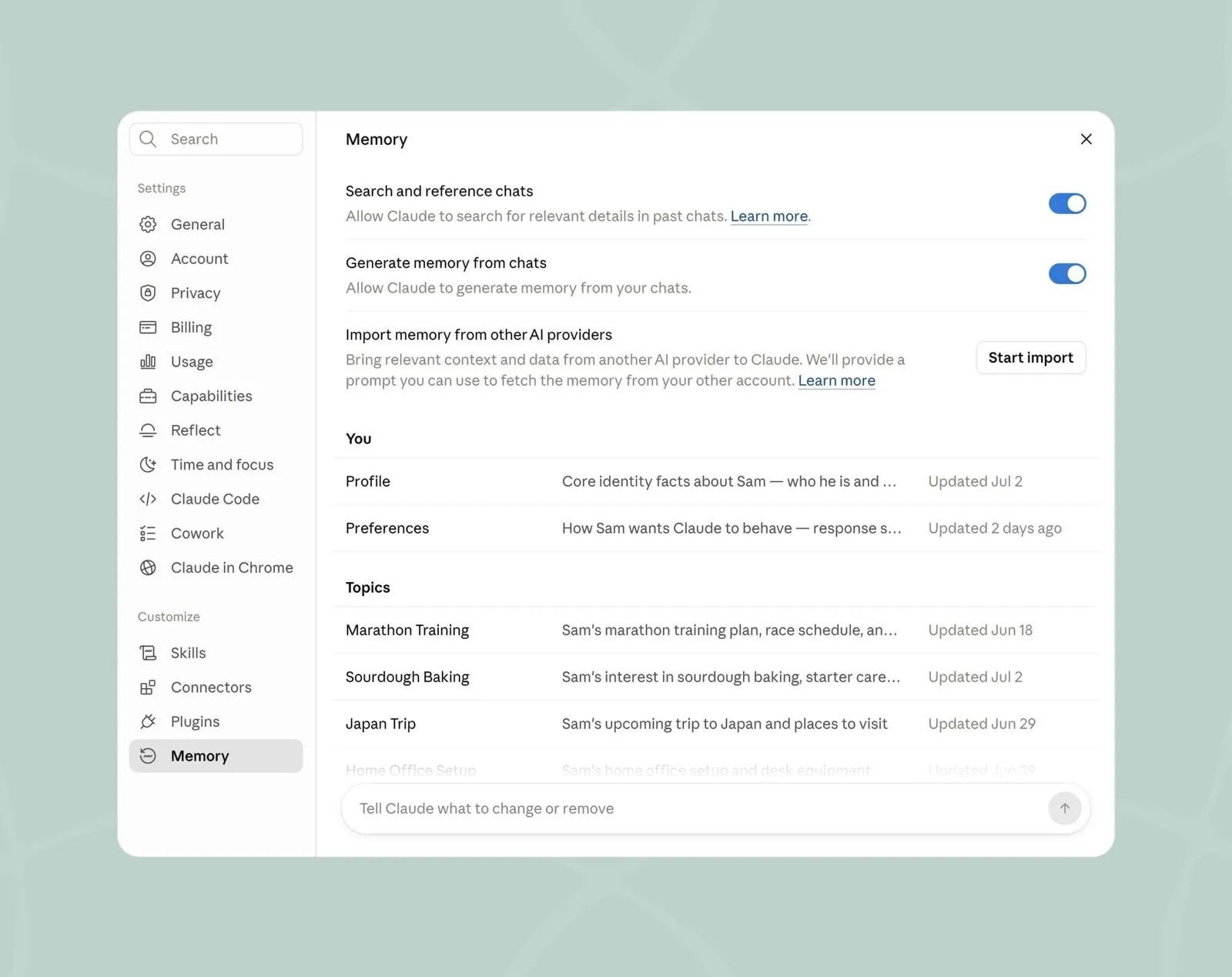
Open Claude’s memory settings. Click your profile icon in the lower-left corner and go to Settings > Memory. If your account still uses Claude’s older interface, open Settings > Capabilities and find the Memory section.
-
Enable Claude’s memory feature. Turn on the option that allows Claude to generate or use memories from your chats if it is currently disabled.
-
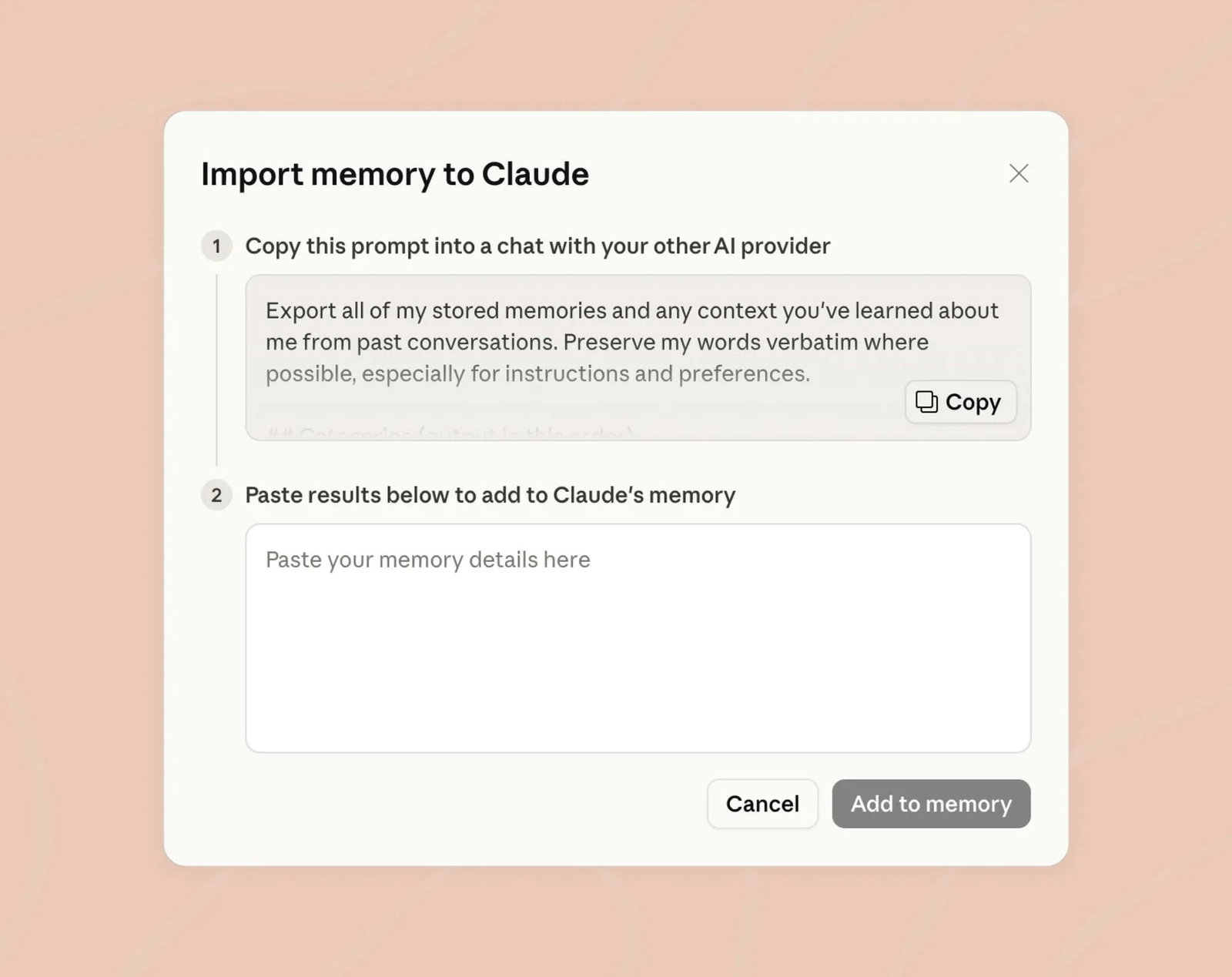
Start the memory import. Find Import memory from other AI providers and select Start import. Claude will display a specially prepared prompt.
-
Copy Claude’s import prompt. Select Copy beside the prompt. It is designed to ask ChatGPT for saved preferences, instructions, recurring work, projects, and other useful context.
-
Check your ChatGPT memory settings. Open ChatGPT, select your profile icon, and go to Settings > Personalization > Memory. Make sure memory is enabled. If you only recently activated it, check whether your memory summary has populated before continuing.
-
Run the prompt inside ChatGPT. Start a new ChatGPT conversation, paste Claude’s prompt, and submit it. For a more detailed summary, you can optionally switch from Auto to Thinking. On supported desktop versions, press Shift + Ctrl + M to open the model picker, or select Thinking manually from the interface. This is optional and is not required to complete the memory transfer.
-
Review the generated memory summary. Read the full output before transferring it. Remove outdated, incorrect, personal, confidential, or sensitive details you do not want Claude to retain.
-
Add the information to Claude. Return to Claude, paste ChatGPT’s output into the import field, and select Add to memory.
-
Confirm what Claude retained. Anthropic says the imported information may take up to 24 hours to appear. After that, return to Settings > Memory and review each entry. Users with the older interface can go to Settings > Capabilities > View and edit your memory.
While you can import ChatGPT memory into Claude, it does not copy your complete conversation history. Anthropic describes the feature as experimental, which means some information may be missed or summarized differently. Treat the import as a useful starting point and correct Claude’s memory wherever necessary.
With your essential context safely unpacked, the next step is bringing over the instructions and prompts that shape how your work gets done.
How To Move Your Prompts And Custom Instructions
You can even port custom prompts to Claude in a quick and easy way.
-
In ChatGPT, open Settings > Personalization > Custom Instructions and copy your instructions.
-
In Claude, open Settings > Instructions for Claude and paste account-wide preferences.
-
Put client, publication, or workflow rules inside the relevant Project instructions.
-
Group reusable prompts by task, remove ChatGPT-only tool references, and preserve useful examples and output rules.
That is the cleanest way to transfer ChatGPT custom instructions to Claude.
Once the rules are in place, save the conversations and files that memory cannot carry.
How To Export Important ChatGPT Conversations And Files
To export ChatGPT data to Claude, go to Settings > Data controls > Export data and confirm the request.
OpenAI sends an archive, but Claude cannot recreate its chat history. Use the export as a backup and manually move useful conversations or files.
Now that the records are safe, rebuild the specialized assistants behind your recurring work.
How To Recreate Custom GPTs As Claude Projects
To recreate Custom GPTs as Claude Projects:
-
Open a GPT you own and copy its instructions and conversation starters.
-
Locate its original knowledge files.
-
Create a Claude Project and select Set project instructions.
-
Paste the behavior rules and upload the files to Project knowledge.
-
Test the Project against tasks previously handled by the GPT.
Apps, image generation, data analysis, or custom actions may require another Claude feature or may not have a direct replacement.
How To Move From ChatGPT To Claude In A Weekend
Use day one to list essential GPTs, prompts, instructions, and files.
People searching for how to export ChatGPT data to Claude should first request an archive through Settings > Data controls > Export. Once the ZIP arrives, they can select useful conversations and files for reference. Claude does not turn the complete archive into a matching account automatically.
Use day two to import memory, build Projects, and test real tasks before making Claude your default.
That handles the boxes.
What Can And Cannot Be Transferred
Claude’s import flow can extract preferences, recurring work, tools, projects, and corrections from text generated by ChatGPT. However, Anthropic calls the feature experimental, says it may miss some information, and notes that Claude’s memory focuses mainly on work-related context.
Review the text and remove sensitive details before importing it. Old chats stay in ChatGPT, while GPTs and uploaded files need to be rebuilt manually.
Why Are People Switching From ChatGPT To Claude And Should You Switch Or Use Both?
People are switching from ChatGPT to Claude mainly because of workflow fit.
Claude’s Projects, memory system, document handling, and response style may suit certain tasks better, while ChatGPT remains strong for Custom GPTs, image generation, data analysis, apps, and custom actions.
The move also changes how work is organized. Your ChatGPT history will not appear as native Claude conversations, and some prompts, files, and integrations may need to be rebuilt.
The smartest approach is to test the same real tasks in both tools. Compare accuracy, editing effort, speed, output quality, and available features. Choose one as your default, but keep the other for tasks it handles better.
Claude Projects give recurring work dedicated instructions and reference files, while memory import reduces the effort of starting over. However, ChatGPT GPTs can include web search, image generation, data analysis, apps, and custom actions. These may not have direct Claude Project equivalents, or they may require a different setup.
That is why some people may prefer to use ChatGPT and Claude together. After all, Iron Man and Captain America eventually shared the screen, so your browser can probably handle two tabs.
Topics For More Insights
Conclusion
Switching from ChatGPT to Claude does not require abandoning everything you built. Import the memories that matter, move your best prompts, rebuild essential GPT workflows as Projects, and test the setup before making it your default. The goal is not to prove one AI assistant is universally better. It is to choose the tool that fits your work while keeping the other nearby when its capabilities still earn a place.
Frequently Asked Questions
Is Claude’s Memory Import Available On The Free Plan?
Claude’s memory-import feature is available on Free, Pro, Max, and Team plans through the web and Claude Desktop. However, Anthropic is rolling out a newer memory interface gradually, so some users may find it under Settings > Memory while others see it under Settings > Capabilities. The import feature is experimental, which means it may not capture every detail. Review the saved entries after importing and manually add any work-related context Claude missed before relying on it for work.
Can Claude Import My Complete ChatGPT Conversation History?
No. Claude’s memory importer works with a text summary of stored preferences and learned context, not a complete conversion of your ChatGPT chat list. You can separately request an OpenAI data export and keep the ZIP as a personal archive. For an important conversation, copy the relevant exchange into a Claude chat or upload a cleaned document to a Project. Check confidential material, permissions, and company policies before moving workplace conversations between services or personal AI accounts.
Should I Cancel ChatGPT Before Switching To Claude?
No. Keep your ChatGPT account until you have checked Claude’s imported memory, rebuilt essential Projects, downloaded important files, and tested your normal workload. Canceling a paid subscription and deleting an account are different actions. OpenAI says a canceled plan remains active until the end of its billing period, while account deletion is permanent. Delete the account only after securing your records and confirming that no GPT, conversation, or connected workflow is still needed after the move.
Fri, Jul 31, 2026

Enjoyed what you've read so far? Great news - there's more to explore!
Stay up to date with the latest news, a vast collection of tech articles including introductory guides, product reviews, trends and more, thought-provoking interviews, hottest AI blogs and entertaining tech memes.
Plus, get access to branded insights such as informative white papers, intriguing case studies, in-depth reports, enlightening videos and exciting events and webinars from industry-leading global brands.
Dive into TechDogs' treasure trove today and Know Your World of technology!
Disclaimer - Reference to any specific product, software or entity does not constitute an endorsement or recommendation by TechDogs nor should any data or content published be relied upon. The views expressed by TechDogs' members and guests are their own and their appearance on our site does not imply an endorsement of them or any entity they represent. Views and opinions expressed by TechDogs' Authors are those of the Authors and do not necessarily reflect the view of TechDogs or any of its officials. While we aim to provide valuable and helpful information, some content on TechDogs' site may not have been thoroughly reviewed for every detail or aspect. We encourage users to verify any information independently where necessary.
Loading comments...