

Artificial Intelligence
All About Google's Gemini CLI: A Dev’s Dream Or Gimmick?
Share
Overview
Not the Hollywood kind with 20 monitors and exploding progress bars, but the real, command-line stuff. The kind that feels like digital lock-picking.
Well, there’s a game where this is explored in a fun way—Fallout 4. It has a mini-game where you sit at a rusted old terminal, scanning through lines of code to guess the right password.
Each failed attempt narrows your chances. Each successful guess make a crack in the doors, safes, or secret logs. It’s tense, it’s nerdy, and somehow, incredibly satisfying.
Well, imagine that mini-game... but supercharged with AI, real-world functionality, and no risk of triggering a lockout.
That’s the kind of vibe Google’s Gemini CLI (command line interface) brings to the table. This Google release is not just another flashy toy, it’s a command-line agent that understands code, generates tasks, manipulates files, and integrates with your existing tools, almost like it’s reading your mind.
Whether you're a solo developer in a digital environment or a team player in a high-stakes repo war, Gemini CLI promises to be your ultimate sidekick.
So, the big question is: Is it a dev’s dream come true—or just another gimmick dressed in AI-driven jargon?
Let’s dive in and find out!
 (1) 226.jpg "TechDogs-\"All About Google's Gemini CLI: A Dev’s Dream Or Gimmick?\"")
In recent months, we’ve seen AI tools infiltrate nearly every corner of the developer workflow, starting from code completion to documentation, testing, and even bug fixing.
Although, most of these tools are either tucked inside Integrated Development Environments (IDEs) or live in browser windows, disconnected from the raw, hands-on environments where developers actually live: the command line.
That’s where Google’s Gemini CLI changes the game. Built to operate directly in your terminal, this AI-powered assistant promises to help you generate, edit, execute, and even understand code without switching windows, tabs, or your train of thought.
In a world where velocity matters as much as clean code, Gemini CLI isn’t promising to be just a new toy for developers but a fundamental shift in how they interact with code.
Now, with great power comes great scrutiny, right?
So, does Google CLI deliver? Is it secure? Is it useful for real-world projects?
In this article, we answer all those questions, while diving into what Gemini CLI does, how it works, what makes it different, and whether it lives up to the hype.
So, let’s break open Gemini CLI is and what makes it so compelling for developers.
What Is Gemini CLI?
Gemini CLI is Google’s open-source command‑line AI agent that brings the power of Gemini 2.5 Pro directly into your terminal. It’s built to amplify real developer workflows, which lets you write, debug, refactor, automate, and even generate media—all via natural‑language prompts in the terminal.

The best part is that it’s open-source under Apache 2.0, so developers can inspect the code, contribute, or even extend it for their unique workflows.
Whether you're exploring local files, scaffolding new features, or automating mundane tasks, Gemini CLI is built to respond like a smart collaborator that lives inside your terminal.
Now that we’ve got a clear idea of what Gemini CLI is and how it works, let’s dive into what makes it stand out in real-world developer workflows.
Key Features Of Gemini CLI
What sets Gemini CLI apart from other AI tools isn’t just its intelligence, but the thoughtful way it fits into how developers actually work.
Here’s what helps it stand out:
-
Massive 1 Million‑Token Context Window
Gemini CLI is powered by Gemini 2.5 Pro, offering an enormous context window of up to 1 million tokens. This allows the AI to consider entire codebases, architectural patterns, dependencies, and context when crafting responses or generating code. This capability is especially useful for large or legacy projects.
-
Generous, Free Tier For Developers
Accessing Gemini CLI only requires a personal Google account and comes with a free Gemini Code Assist license. Developers get up to 60 model requests per minute and 1,000 per day—among the most generous limits in the industry.
-
Terminal-First Design
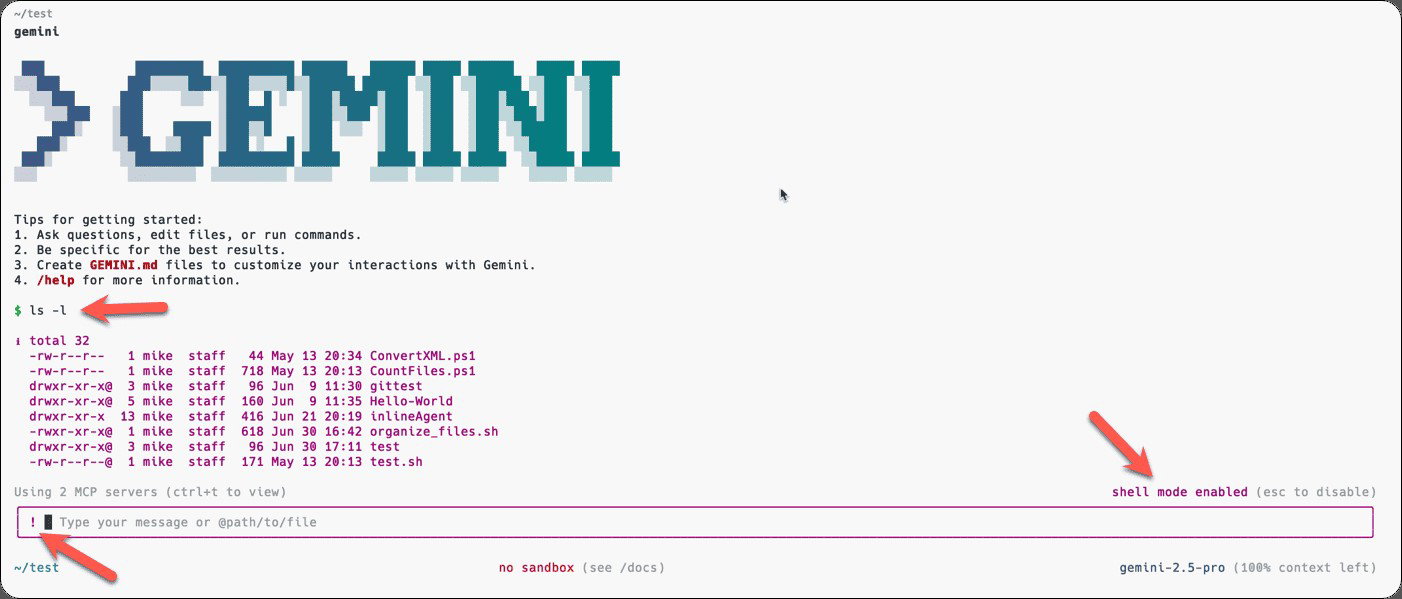
Designed to live in your terminal (not in browser plugins or IDEs), Gemini CLI speaks your developer language. It accepts natural-language prompts to perform tasks, debug, generate or refactor code, run shell commands, fetch web data, and more—all without pulling you away from your workflow.
-
Open Source And IDE-Unified Workflow
Released under Apache 2.0, Gemini CLI is open source, transparent, and community-friendly. Plus, it shares the same AI backbone as Gemini Code Assist, offering consistency whether you're in VS Code or the terminal.
-
Scriptable Automation And GitHub Integration
Gemini CLI supports non-interactive scripting—team it with CI/CD workflows, bash scripts, or project setup tools. The beta Gemini CLI GitHub Actions integration brings the AI into source control workflows: auto-labeling issues, reviewing PRs, triggering actions with @gemini-cli, and more. It also supports secure enterprise use via Workload Identity Federation (WIF).
These features sound impressive on paper, but how does Gemini CLI actually stack up when developers put it to work?
Let’s explore how it’s being received and where it shines (or stumbles) in practice.
Comparisons And Developer Impressions For Google’s Gemini CLI
The buzz around Gemini CLI naturally invites comparisons with other AI-powered developer tools, especially those built for serious coding tasks. While each tool offers its own strengths, the differences become clear when you look at how they behave in real-world dev workflows.
Here’s a quick breakdown:
| Feature / Criteria | Gemini CLI | Claude Code | Cursor |
| Primary Interface | Command Line Interface (CLI) | Web-based chat interface | IDE (VS Code) extension |
| Context Window | 1 Million tokens (Gemini 2.5 Pro) | ~200K tokens (Claude 3 Opus) | ~200K tokens |
| Natural Language Prompts | Yes, CLI-based | Yes, chat-style | Yes, inline in code editor |
| Best Use Cases | File ops, terminal tasks, scripting, code generation | Long-form explanation, deep logic/code walkthroughs | Inline code suggestion, refactoring |
| Coding Output Style | Functional and clean, ideal for terminal flows | Highly detailed, often verbose | Concise, IDE-optimized |
| Search/Docs Integration | Google Search grounding | Anthropic’s training base | Local + online docs depending on setup |
| GitHub Workflow Integration | Yes – via @gemini-cli + GitHub Actions (beta) | No direct integration | Built-in GitHub integration |
| Extensibility | High – via MCP, custom tools, plugins | Low | Moderate – depending on IDE extensions |
| Open Source | Yes (Apache 2.0) | No | No |
| Free Tier Availability | Generous (60 requests/min, 1,000/day with Google account) | Paid tiers for Claude 3 Opus | Free trial, limited after that |
| IDE Integration | Shared with Gemini Code Assist | None | Native (VS Code) |
| Session Handling | Moderate, checkpoint-based | Strong, memory-retaining | Strong, auto-updated context |
| Speed & Responsiveness | Fast in terminal, minor delays in complex requests | Quick responses, slightly verbose | Fast in local setups |
While each of these tools has its place, Gemini CLI stands out for its open-source, terminal-native design, but also invites scrutiny. Anytime an AI gains this level of access to your file system and codebase, security becomes a major talking point.
So, how safe is Gemini CLI really?
Let’s dig into the part where we explore if it’s a gimmick, discuss more about the risks, flaws, and concerns that developers need to know.
The Gimmick Argument: Potential Drawbacks Of Google Gemini’s CLI
When an AI tool has the power to execute commands on your local machine, security becomes critical. Gemini CLI’s capabilities introduce both convenience and potential vulnerabilities.
Here's where things get risky, and what’s been done about it.
-
A Vulnerability Right After It's Release
Shortly after its release, Gemini CLI was found to have a critical vulnerability. Researchers at Tracebit discovered that seemingly safe commands like grep could be manipulated to execute hidden scripts (especially when buried inside files like README.md.). This exploit worked because Gemini CLI allowed certain commands without prompt confirmation. Google responded quickly with version 0.1.14, adding visible command previews and a safeguard that blocks silent execution unless explicitly approved.
-
The Ongoing Threat Of Prompt Injection
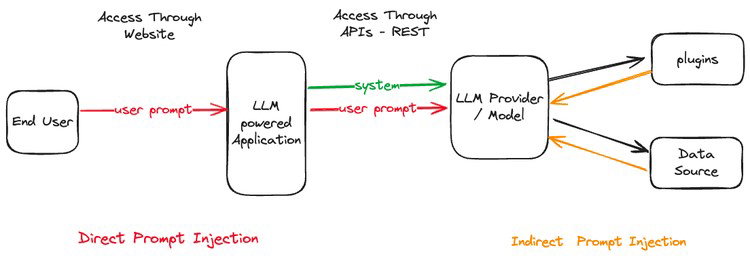
Beyond shell-level exploits, Gemini CLI is susceptible to prompt injection, a method where attackers insert hidden instructions into natural-language context files like GEMINI.md. These instructions can cause the AI to unintentionally execute harmful commands. It’s a reminder that as AI gets smarter, it’s also more easily tricked, especially when it trusts inputs by default. Also, Gemini isn’t alone here, other LLM-powered tools have shown similar weaknesses across email, smart-home devices, and browser integrations.
-
Google’s Defensive Moves
To its credit, Google acted fast. In addition to the patch, it now encourages running Gemini CLI inside sandboxes using Docker, Podman, or macOS’s Seatbelt. The CLI throws red warning banners when it detects unsafe environments. Ongoing adversarial testing by DeepMind is also in place to probe vulnerabilities. It’s clear Google is treating Gemini CLI as a serious developer tool (not a demo) by prioritizing transparent, layered defense.
Gemini CLI delivers game-changing power, but with that power comes responsibility. It’s no gimmick, but it’s not risk-free either.
Now, Google has raised the stakes even higher, with a new update that brings Gemini CLI directly into GitHub workflows.
Recent Update: Gemini CLI Offers GitHub Actions
Google just turned Gemini CLI into a GitHub-native AI sidekick—enter Gemini CLI GitHub Actions, now available in free beta.
Unlike the terminal-only tool, this agent lives in your GitHub repo and operates asynchronously using your project’s context to automate routine dev tasks. It ships with three built-in workflows: intelligent issue triage (labels and sorts new issues), pull request reviews (checks for style, correctness, and quality), and on-demand AI help triggered by tagging @gemini-cli in a conversation.
It’s not just smart—it’s also secure. Enterprise users can bypass API keys using Workload Identity Federation, applying least-privilege principles and enhancing credential security. Plus, with OpenTelemetry integration, everything the agent does is logged and visible through your monitoring setup.
Teams are already noticing efficiency gains: automating issue triage, PR reviewing, and even patch generation right from the repo.
It’s a shift from static tools to agentic workflows and the update highloghts Gemini CLI’s evolution from an individual terminal assistant into a team-integrated developer collaborator.
In Conclusion
Gemini CLI is more than hype—it’s a powerful, terminal-native AI tool that’s genuinely useful for developers who work in the command line. With features like GitHub Actions integration, open-source extensibility, and real-time code assistance, it’s more than a novelty.
That said, early security flaws prove it’s not without risk. Google’s quick fixes are promising, but caution is still advised.
While it may not perfect, it’s definitely not a gimmick. For the right kind of developer, Gemini CLI could be the start of a whole new workflow. The question is: are you that kind of developer?
Frequently Asked Questions
What Does CLI Stand For?
CLI stands for Command-Line Interface, which is a text-based interface that lets you interact with software by typing commands instead of using graphical elements.
Is Gemini CLI Free?
Yes! for the vast majority of developers, Gemini CLI is completely free of charge. You only need to sign in with a personal Google account to get a free Gemini Code Assist license, which includes access to Gemini 2.5 Pro and generous usage limits (60 requests per minute, 1,000 per day).
How To Install Google CLI On Windows?
To install Gemini CLI on Windows, ensure you have Node.js 18 or later, then open PowerShell, Command Prompt, or Windows Terminal and run the installation command. The setup is quick. Jjust authenticate with your Google account, and you're ready to go.
Thu, Aug 21, 2025

Enjoyed what you've read so far? Great news - there's more to explore!
Stay up to date with the latest news, a vast collection of tech articles including introductory guides, product reviews, trends and more, thought-provoking interviews, hottest AI blogs and entertaining tech memes.
Plus, get access to branded insights such as informative white papers, intriguing case studies, in-depth reports, enlightening videos and exciting events and webinars from industry-leading global brands.
Dive into TechDogs' treasure trove today and Know Your World of technology!
Disclaimer - Reference to any specific product, software or entity does not constitute an endorsement or recommendation by TechDogs nor should any data or content published be relied upon. The views expressed by TechDogs' members and guests are their own and their appearance on our site does not imply an endorsement of them or any entity they represent. Views and opinions expressed by TechDogs' Authors are those of the Authors and do not necessarily reflect the view of TechDogs or any of its officials. While we aim to provide valuable and helpful information, some content on TechDogs' site may not have been thoroughly reviewed for every detail or aspect. We encourage users to verify any information independently where necessary.
Loading comments...